
This page contains affiliate links. See our affiliate disclosure.
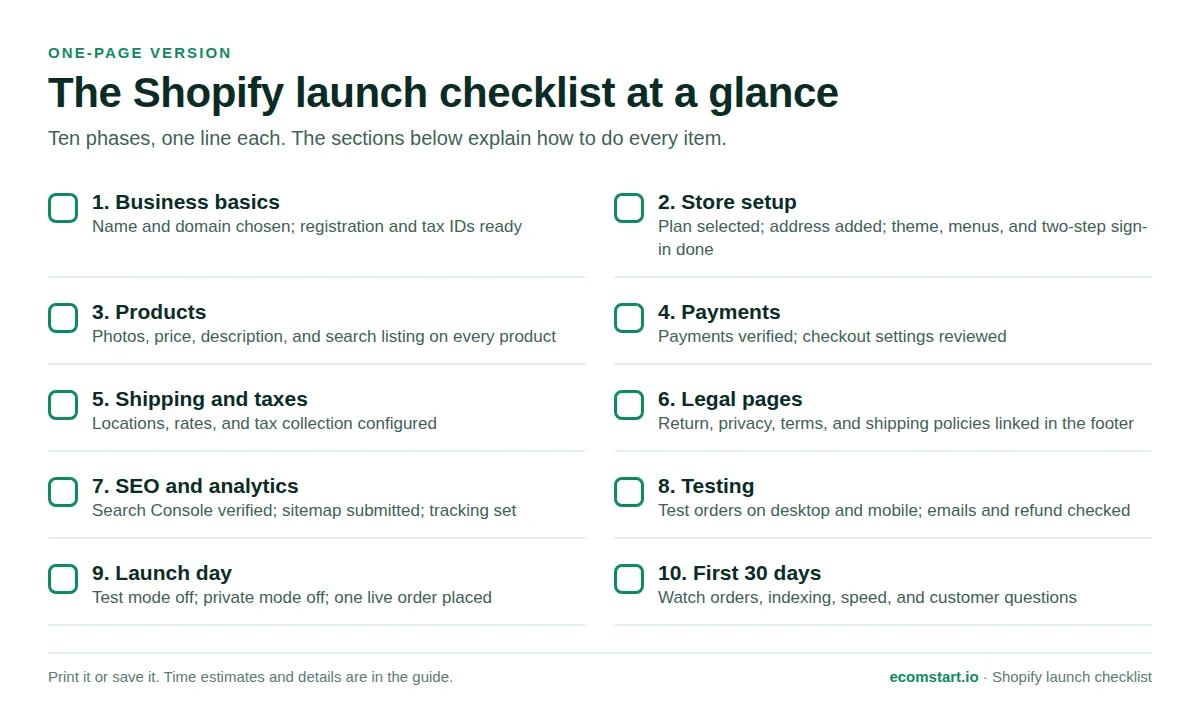
Quick answer: To launch a Shopify store, work through ten phases in order: business basics, store setup, products, payments and checkout, shipping and taxes, legal policies, SEO and analytics, testing, launch day, and the first 30 days. Shopify requires a paid plan, a store address, and a working payment method with test mode off before your store can go public.
A launch goes wrong in boring ways: a payment method left in test mode, a password page nobody removed, a shipping rate that never shows at checkout. This checklist catches those problems before a customer does. Every step names the place in the Shopify admin where you do it, and every claim about Shopify comes from its Help Center, its pricing page, or Google Search Central (sources are listed at the end).
The guide assumes a new store. Prices are current as of October 2026 and can change, so confirm them on Shopify's pricing page before you buy.
How long does it take to launch a Shopify store?
For a small catalog, most people need one to three weeks of part-time work. The slow parts are rarely Shopify itself: product photos, business registration, and payment verification take longest. The time ranges below are our own estimates, not figures published by Shopify.
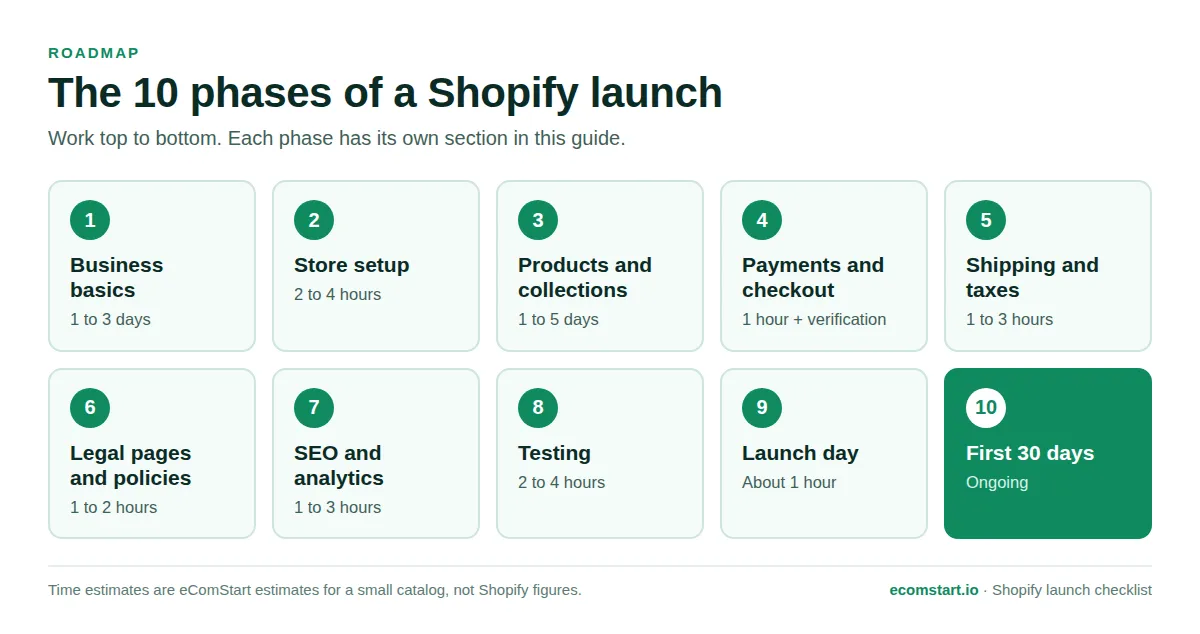
| Phase | What you finish | Typical time |
|---|---|---|
| 1. Business basics | Name, registration, bank account, sourcing | 1 to 3 days |
| 2. Store setup | Plan, theme, domain, menus, security | 2 to 4 hours |
| 3. Products | Listings, collections, inventory | 1 to 5 days |
| 4. Payments and checkout | Payment methods, checkout rules | 1 hour plus verification |
| 5. Shipping and taxes | Rates, locations, tax collection | 1 to 3 hours |
| 6. Legal pages and policies | Return, privacy, terms, shipping | 1 to 2 hours |
| 7. SEO and analytics | Search Console, sitemap, tracking | 1 to 3 hours |
| 8. Testing | Test orders, mobile checks | 2 to 4 hours |
| 9. Launch day | Public access, live order, indexing | About 1 hour |
| 10. First 30 days | Monitoring and fixes | Ongoing |
Phase 1: Business basics
These tasks happen before you touch the Shopify admin. Skipping them is the most common reason a launch stalls, because payment verification and tax collection both depend on real business details.
- Define what you sell and who buys it: Write one sentence naming your product, your customer, and why they would buy from you instead of a marketplace. Confirm the products are legal to sell online where you plan to ship.
- Choose a store name and check the domain: Pick a name you can also get as a domain and a social handle. Shopify notes that a domain matching your brand helps build trust.
- Register your business where required: Rules differ by country and state, so check with your local authority or an accountant. Shopify states that if you need to collect sales tax, you must register with the relevant tax authority.
- Open a business bank account: Payouts need somewhere to land. Shopify Payments publishes bank account requirements, so review them first.
- Line up suppliers and fulfillment: Know where inventory comes from, how long it takes, and where orders ship from. Vet every supplier before you list their products. Our comparison of Shopify expert versus DIY helps you decide how much to outsource.
Phase 2: Store setup
Choose a plan and understand the free trial
Shopify's free trial begins when you first sign up, not when you start building. The pricing page shows a 3-day free trial as of October 2026, but the Help Center says trial length varies with your account creation date and location, and that Shopify cannot extend a trial. Your store starts in private mode, so customers cannot buy until you select a paid plan.
- Start the trial and check its length: Visit the free trial page and read the trial length shown at signup. If the trial ends before you pick a plan, your store is paused, but your products, designs, and settings are kept.
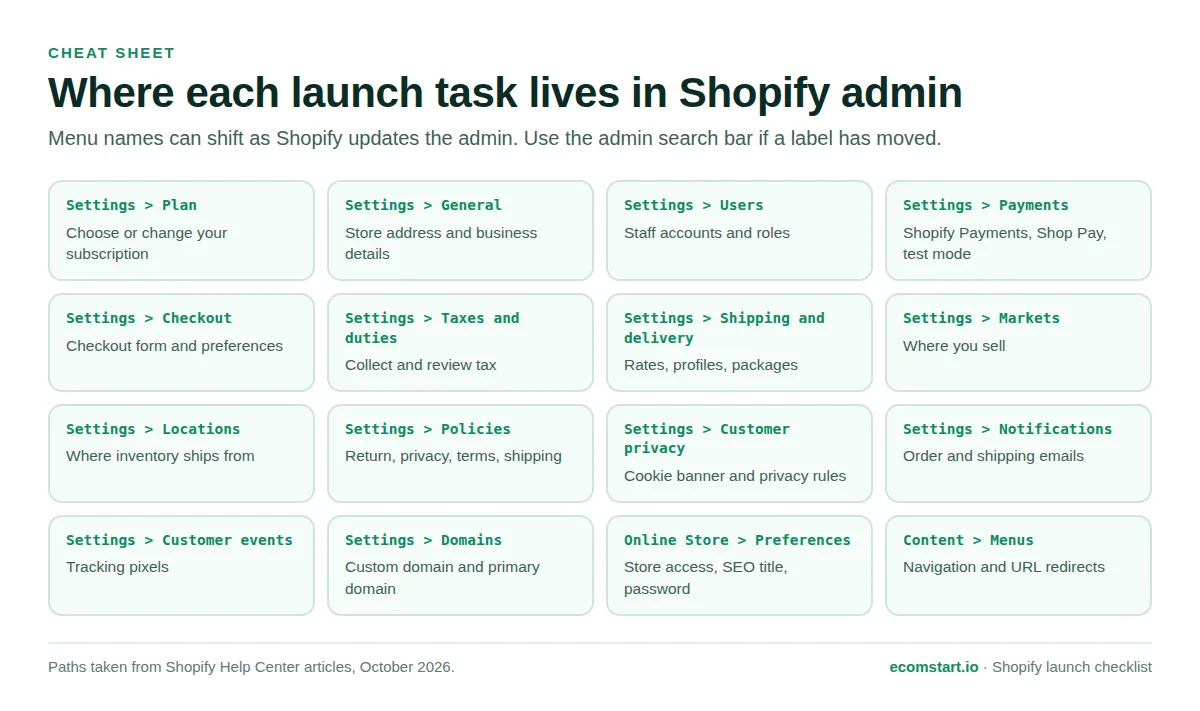
- Pick a plan: Go to Settings > Plan. Basic suits solo sellers, Grow adds staff accounts, and Advanced adds live third-party shipping rates and regional tailoring.
- Compare yearly and monthly billing: Annual billing charges the full year upfront at a lower effective monthly rate. Check the total before you confirm.
- Watch app charges: Apps installed during the trial are billed on your first invoice after it ends.
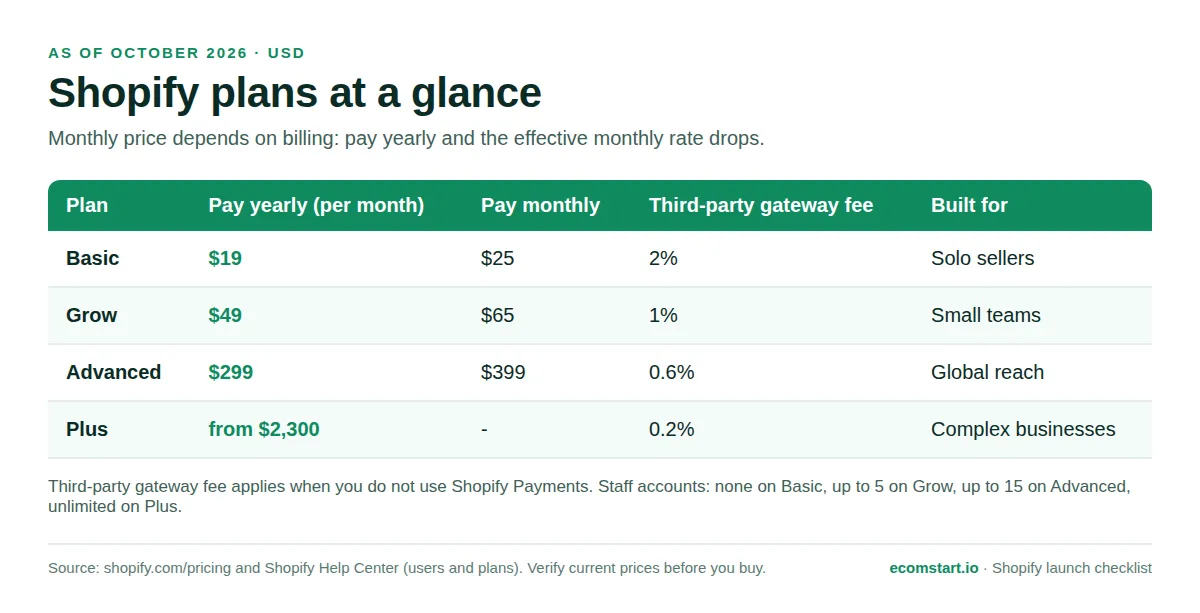
For a closer look at one tier, read our Shopify Grow plan breakdown. Staff accounts matter early: Shopify's user documentation says staff users are available only on Grow and higher, and the pricing page lists up to 5 on Grow and up to 15 on Advanced.
Configure core store settings
- Add your store address and business details: Go to Settings > General and complete the Business details section. Shopify requires a store address before launch.
- Turn on two-step authentication: Click your store name, click your profile, click Security, then click Turn on two-step. An authenticator app works well. Shopify Payments requires it, and without it your payouts might be placed on hold. Save your recovery codes in more than one place.
- Invite staff with limited roles: Go to Settings > Users and give each person only the permissions they need.
- Add inventory locations: Go to Settings > Locations and add each place you store or ship stock.
- Connect your domain: Go to Settings > Domains. You can buy a domain through Shopify, connect one you own, or transfer one in. Set your preferred domain as primary. Shopify creates a free TLS certificate automatically, and a store can hold up to 20 domains in addition to its myshopify.com address.
- Choose and customize a theme: Go to Online Store > Themes. New stores use the free Dawn theme by default, and the Shopify Theme Store has free and paid options. Keep the design simple at first. Our reviews of the Prestige theme and the Sleek theme show how premium themes feel in practice.
- Build your navigation: Go to Content > Menus. Use descriptive titles, a logical order, and keep every page within three clicks of the home page.
- Create essential pages: Add About, Contact, and FAQ pages under Pages (listed under Online Store or Content, depending on your admin version). Shopify's site quality checklist names About Us, contact information, policies, and an FAQ as trust builders.
- Review customer accounts and notifications: Settings > Customer accounts controls how shoppers sign in. Settings > Notifications holds the emails Shopify sends automatically, many of which cannot be deactivated but can be customized.
Phase 3: Products and collections
Product pages carry most of your sales and most of your search traffic. Shopify recommends designing them for shoppers and for the AI systems that crawl them: clear titles, complete specifications, and structured product details.
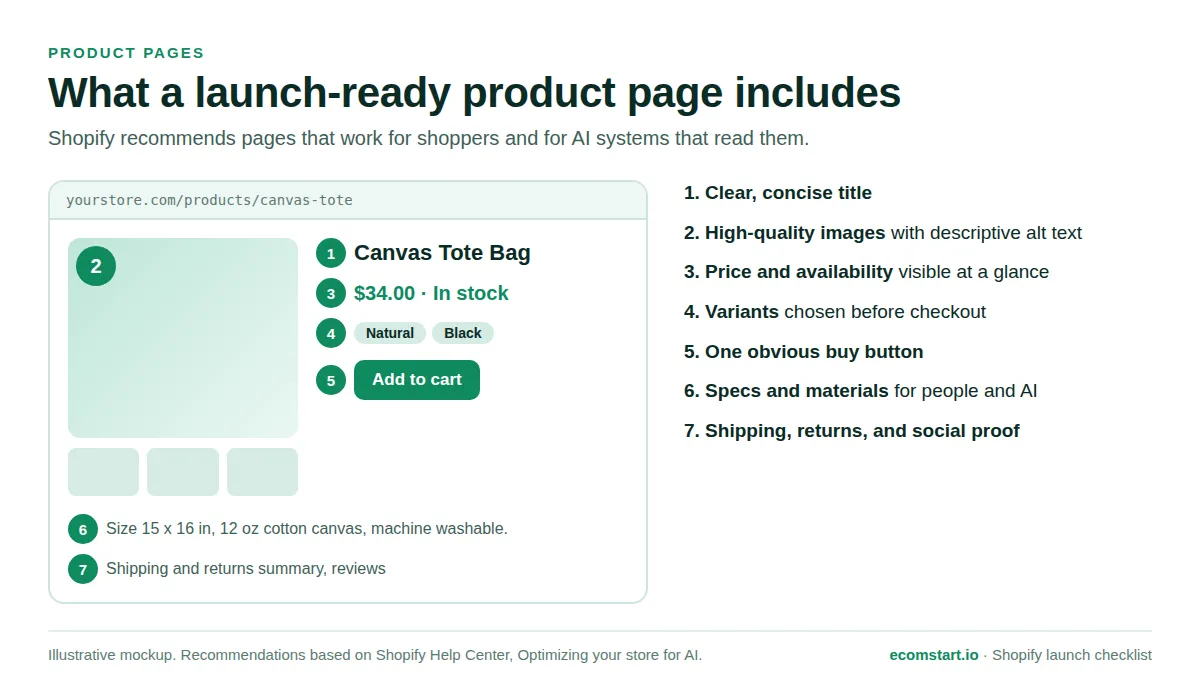
- Add each product: Go to Products and click Add product. Enter a title, description, media, price, and inventory.
- Write specific descriptions: Lead with the main benefit, then add materials, dimensions, sizing, care, and compatibility. Shopify's AI guidance asks for detailed specifications and comparison information, which you can place lower on the page.
- Use high-quality images with alt text: Add several angles. Rename image files descriptively before uploading, because Shopify cannot rename a file afterward. Write alt text that describes what the image shows.
- Use variants for options: Add variants for sizes and colors instead of duplicating a product. Duplicate only when items are different but share most details.
- Set prices, SKUs, and barcodes: Enter your price and, if you track stock, the quantity at each location. Shopify allows up to 20 barcodes per product or variant.
- Organize collections and tags: Go to Products > Collections to group products shoppers browse together. A product can have up to 250 tags, which help store search and automated collections.
- Edit the search engine listing: In each product's Search engine listing section, write a page title and meta description. Shopify warns that titles over 70 characters or descriptions over 320 characters might be cut off. Avoid changing a handle after launch.
- Set status and sales channels: Choose Active, Draft, or Unlisted, and use the Publishing section to pick where each product sells. Keep unfinished products in Draft.
- Preview every product: Open each product and click Preview to see what customers see.
Phase 4: Payments and checkout
Payments are the step most likely to delay a launch, because Shopify may need to verify your identity and business details. Start early and plan for a wait.
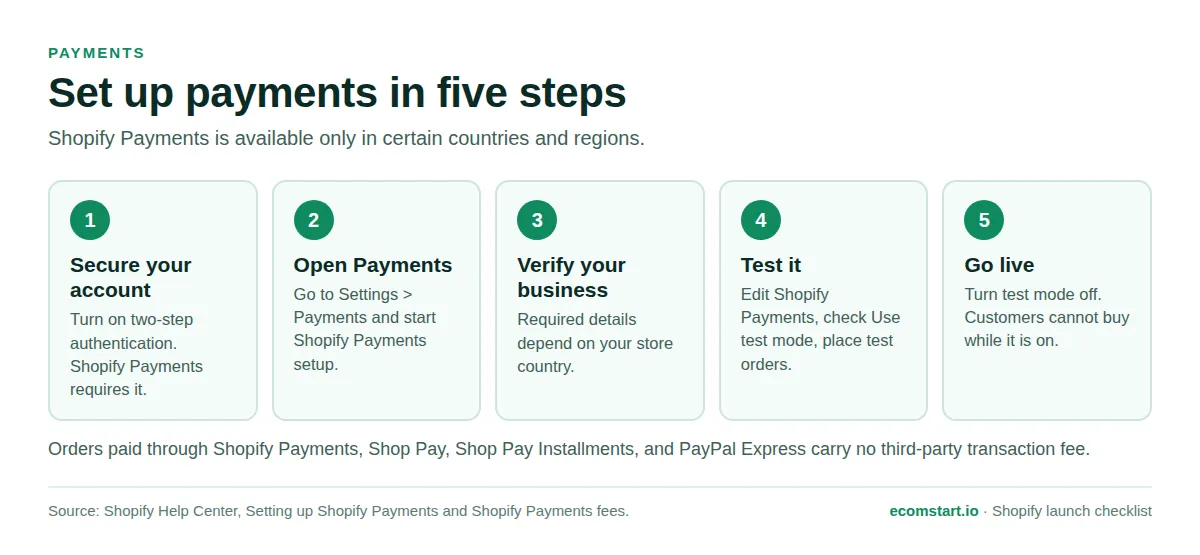
- Check that Shopify Payments supports your country: It is available only to online stores in certain countries and regions. If yours is not supported, use a third-party payment provider.
- Activate Shopify Payments: Go to Settings > Payments and start setup. The information you must provide depends on your store's country. Customers can pay with credit and debit cards that have a CVV number.
- Understand the fee rule: You are not charged third-party transaction fees on orders processed through Shopify Payments, Shop Pay, Shop Pay Installments, or PayPal Express. Using a third-party provider alongside Shopify Payments triggers transaction fees. Card processing rates vary by plan and country, so read the current rates on Shopify's pricing page.
- Turn on Shop Pay: In Settings > Payments, activate Shop Pay for faster checkout. It can also make your store eligible for Shop app features.
- Review checkout settings: Go to Settings > Checkout. Review the checkout form options and decide how you collect customer email addresses for promotional marketing.
- Confirm which countries you sell to: Go to Settings > Markets. To sell to a country, it must be in an active market.
- Plan for fraud and bad addresses: Our guide to Shopify address verification explains how to prevent fake and invalid orders, and our roundup of checkout apps for Shopify covers extensions that improve checkout.
Phase 5: Shipping and taxes
Set up shipping
Shipping settings live in Settings > Shipping and delivery. They control how costs are calculated, which delivery options appear at checkout, and which locations fulfill orders.
- Decide your rate strategy: Shopify supports flat rates, free shipping (for example above an order value), and carrier-calculated rates from carriers such as UPS and FedEx. Flat rates are predictable for a first launch.
- Check plan limits for live carrier rates: Shopify's pricing page lists live third-party shipping rates as an Advanced plan feature. Confirm your plan includes them if you need real-time rates.
- Create shipping profiles: Charge different rates for specific products, such as oversized items, or for products that ship from different locations.
- Enter package details: Add the dimensions and weights of the packages you use so carriers can calculate accurate costs.
- Add backup rates: Backup rates let customers complete checkout if carrier-calculated rates fail.
- Set fulfillment time and tracking: Configure fulfillment time so checkout can show delivery estimates, and set up the order status page. You can buy and print shipping labels from the admin.
Set up taxes
Shopify calculates tax automatically, but the legal responsibility stays with you. Shopify states that it does not remit or file your taxes unless you use Shopify Tax with automated filing. Confirm rates and obligations with a tax authority or accountant.
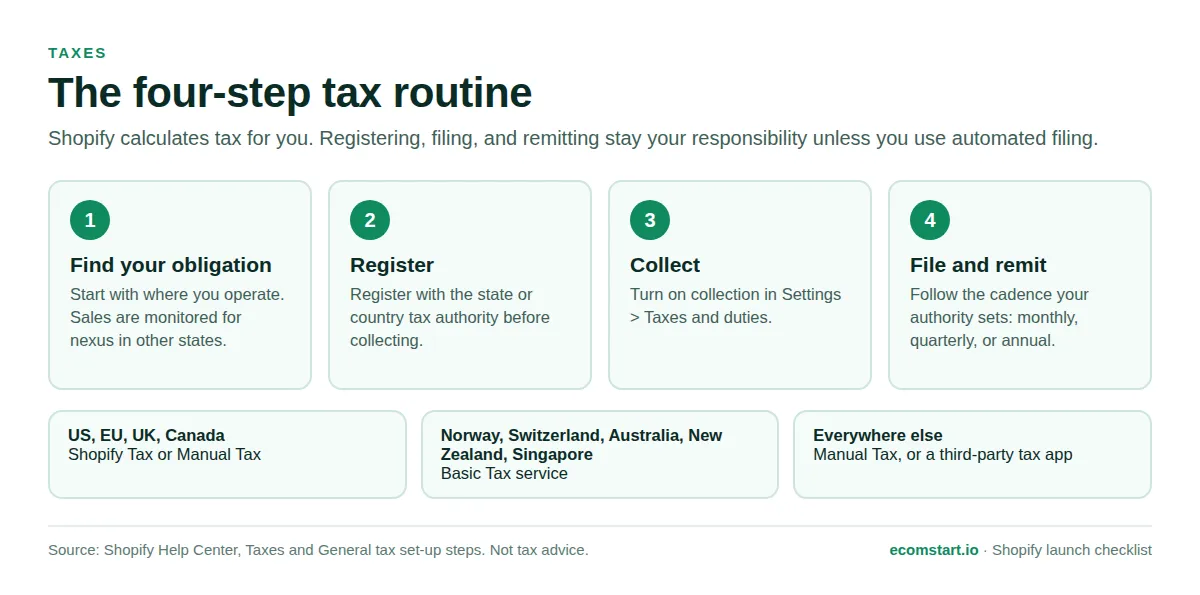
- Find where you must collect tax: This usually starts with where you operate. Shopify also monitors your sales to flag possible obligations in other states or countries.
- Register with the tax authority: Register before you start collecting. In the United States, that means the states where you must charge tax.
- Turn on tax collection: Go to Settings > Taxes and duties and review each region. In the US, EU, UK, and Canada you can use Shopify Tax or Manual Tax. In Norway, Switzerland, Australia, New Zealand, and Singapore, Shopify offers a Basic Tax service. Elsewhere, use Manual Tax or a third-party tax app such as Avalara or TaxJar.
- Set product categories: With Shopify Tax, fill in the product category field so reduced rates and exemptions apply correctly.
- Decide whether prices include tax: Shopify lets you show prices with or without tax depending on where customers shop. Set this deliberately, because it changes what shoppers see at checkout.
- Plan for duties and filing dates: If you ship abroad, review how Shopify handles duties and import taxes at checkout. Your authority sets the filing cadence, typically monthly, quarterly, or annually.
Phase 6: Legal pages and policies
Policies reassure buyers and protect you when something goes wrong. Shopify links the policies you publish in your checkout footer automatically, so missing ones are visible to every customer.
- Publish your core policies: Go to Settings > Policies. You can add a return policy, privacy policy, terms of service, shipping policy, legal notice, and subscription policy. Click a policy, then write your own or click Insert template.
- Read every template before you save: Shopify can generate templates, but you are responsible for following the policies you publish. Templates are generated only in English, with some available in French, Italian, and Spanish. For other languages, write your own and consult a local legal expert.
- Link policies in your footer menu: Go to Content > Menus, open your footer menu, and add each policy. Policies also live at predictable paths such as /policies/refund-policy and /policies/privacy-policy.
- Configure customer privacy settings: Go to Settings > Customer privacy. New stores have automated privacy settings on by default, which helps keep your privacy policy, cookie banner, and data-sharing opt-out page aligned with your settings. You can customize behavior for each region where you sell.
- Get legal advice for high-risk products: Shopify's privacy documentation is general information, not legal advice. Supplements, cosmetics, children's products, and regulated goods need professional review.
Phase 7: SEO and analytics
A new store has no search history, so the goal at launch is to make everything easy for Google to find, read, and trust. Shopify handles much of the technical SEO, including automatic sitemap generation and structured data in supported themes. Your job is to supply good titles, descriptions, and links, and to connect Google Search Console. For a deeper walkthrough, read our guide to what still works for Shopify SEO.
- Write your homepage title and description: Go to Online Store > Preferences and complete the title and meta description. For pages, products, collections, and posts, use the Website SEO preview section at the bottom of each editor.
- Use descriptive names and links: Descriptive image file names and link text help search engines understand your content, and every page should be reachable from your menus.
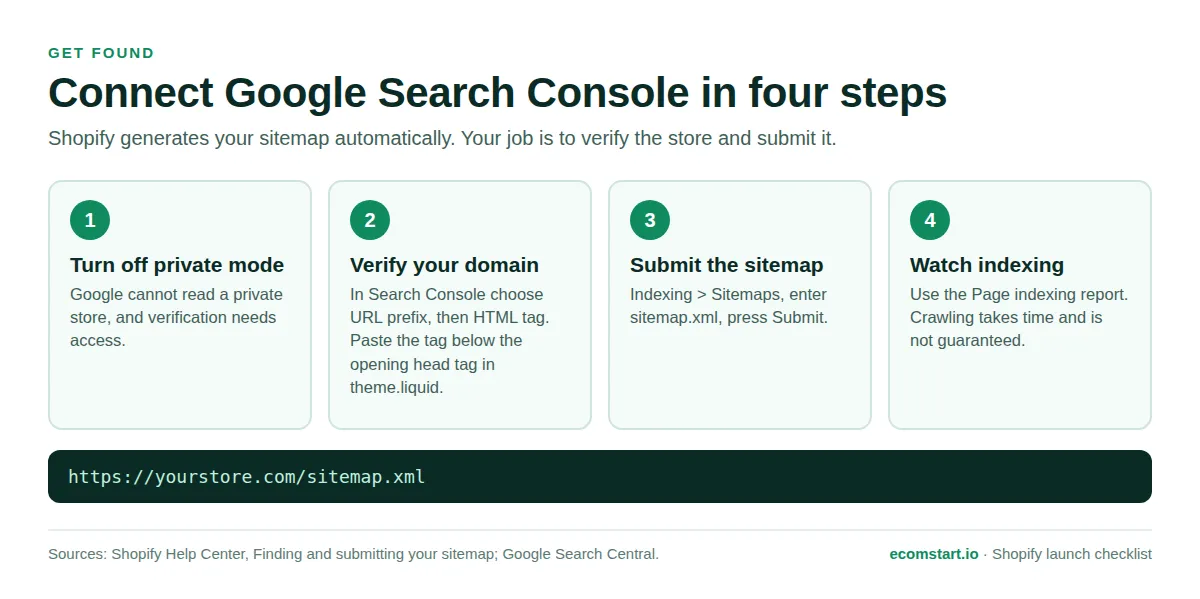
- Verify your site in Google Search Console: Search Console is a free Google service that shows how your site performs in search and flags indexing problems. Verification needs access to your store, so if you are in private mode, turn it off briefly, verify, and turn it back on if you are not ready to launch. Choose URL prefix, then the HTML tag method. In Shopify, go to Online Store, open the theme's three-dot menu, click Edit code, open theme.liquid, and paste the tag directly below the opening head tag.
- Submit your sitemap: Shopify generates sitemap.xml automatically at the root of every domain and updates it as you add products, collections, pages, or posts. In Search Console go to Indexing > Sitemaps, enter sitemap.xml, and click Submit. Google does not guarantee how long indexing takes.
- Set up redirects if you are migrating: Go to Content > Menus and open URL redirects. Point every old URL to its closest new page.
- Prepare for AI answers: Shopify's Knowledge Base app is free on all plans and lets you view and customize the FAQs AI shopping agents use to answer questions about your store. Install it and review the generated answers.
- Add tracking carefully: Go to Settings > Customer events to manage pixels, and combine it with your privacy settings so tracking respects customer consent.
- Plan for Google Merchant Center: To appear in the Google Shopping tab, Google says you must sign up for Merchant Center. Do it after your site is live and indexed.
Phase 8: Testing
Test orders confirm that checkout, order processing, inventory, shipping, taxes, and notifications work before a real customer finds a flaw. Shopify recommends at least one test order during setup and again whenever you change payment settings.
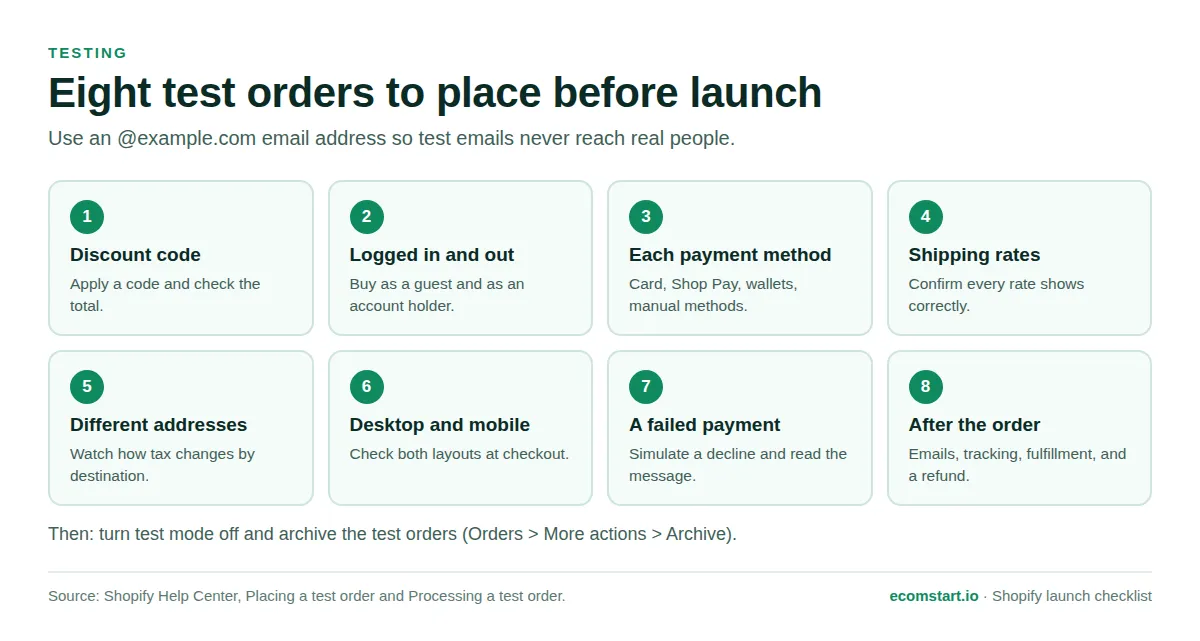
- Turn on Shopify Payments test mode: Go to Settings > Payments, click Edit in the Shopify Payments section, check Use test mode, and click Save. Customers cannot place live orders while any provider is in test mode, so switch it off as soon as testing ends.
- Know the alternatives: With another provider, check whether it offers test mode. Otherwise use Shopify's Test payment gateway, which works only after you choose a paid plan, or place a real order and immediately cancel and refund it. Some processing fees are not returned.
- Use a safe email address: Use an address ending in @example.com. Shopify recognizes it, it will not trigger spam detection, and it keeps your inbox clear. If you send test orders to your own email, keep it under 100 at a time.
- Run varied scenarios: Apply a discount code, buy logged in and logged out, try each payment method, and use different shipping addresses to see how tax and rates change. Test on desktop and mobile, and simulate a failed transaction.
- Check the order afterward: Review the order notification, add tracking and check the shipping notification, test a partial fulfillment, and issue a full or partial refund.
- Clean up: Archive test orders from Orders > More actions > Archive. Test orders do not appear in payouts or reports.
- Preview the whole store: In Online Store, click Preview store. Click every menu link, submit the contact form, and read every page for typos.
Phase 9: Launch day
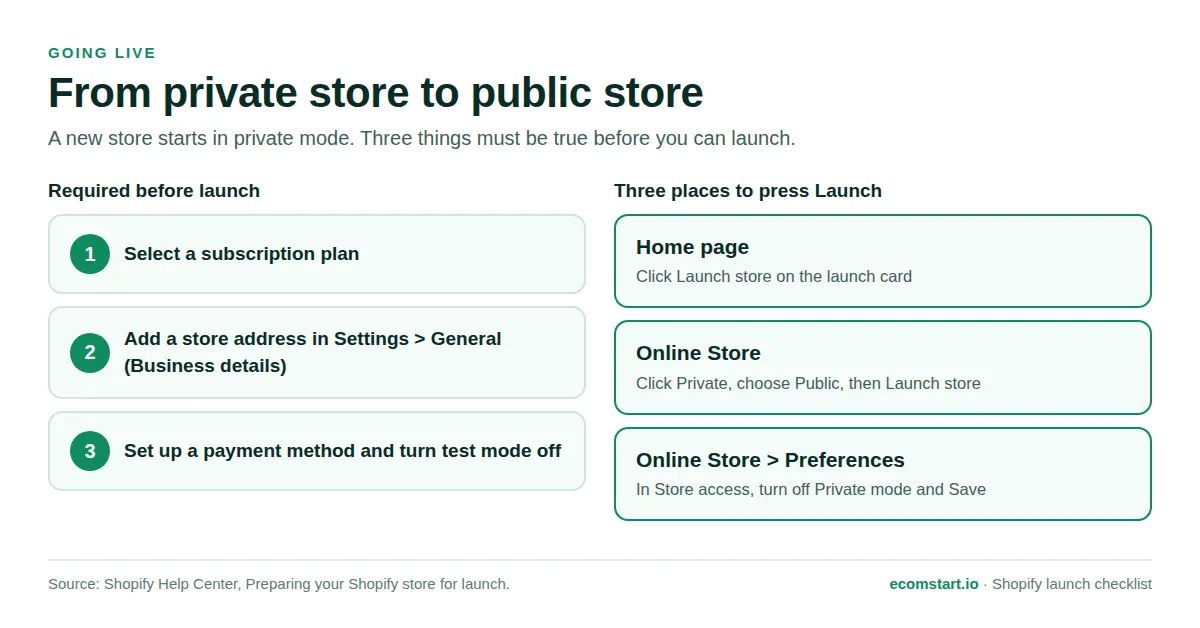
Launching means changing store access from private to public. Before you do, confirm the three requirements Shopify enforces: a selected plan, a store address in Settings > General, and a payment method with test mode deactivated.
Choose a launch strategy
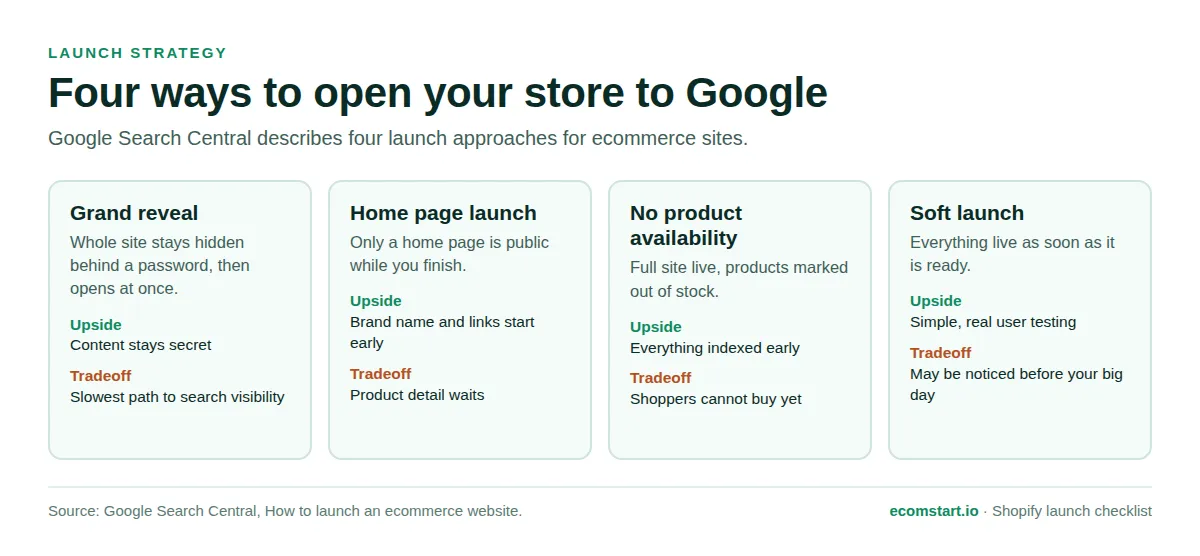
Google Search Central describes four ways to open an ecommerce site. The right one depends on whether you want search engines to see your site early or keep it quiet until a marketing event.
| Approach | What it means | Upside | Tradeoff |
|---|---|---|---|
| Grand reveal | Keep the whole site hidden, then open it all at once | Content stays secret until launch | Slower to appear in search and Shopping |
| Home page launch | Only the home page is public at first | Brand name and links start early | Product detail waits for the full launch |
| Launch without product availability | Full site live with products marked out of stock | Everything is indexed early | Shoppers cannot buy yet, so say so clearly |
| Soft launch | Everything live as soon as it is ready | Simple, with real user testing | Your site may be noticed before your big day |
Google cautions against disabling add-to-cart to stop purchases before launch, because it may use add-to-cart to verify final prices including tax and shipping. Mark products out of stock instead.
- Do a final pass: Check that every product is Active, policies are linked, menus work, and test mode is off.
- Launch the store: Use the launch card on the Home page, or click Private on the Online Store page, choose Public, and click Launch store. You can also go to Online Store > Preferences, turn off Private mode in the Store access section, and click Save.
- Remove the password page: Open your store in a private browser window to confirm the public sees the real storefront.
- Place one live order: Buy a low-cost product with a real card, then cancel and refund it to prove the live payment path works. Read your payment provider's terms first. Third-party transaction fees are not refunded, so expect a small cost.
- Submit your sitemap and request indexing: If you have not already, submit sitemap.xml. For a small number of important URLs, Google suggests the URL Inspection tool.
Phase 10: The first 30 days after launch
Launch gives you real data for the first time. Use the first month to find what breaks, what confuses shoppers, and what Google has actually indexed.
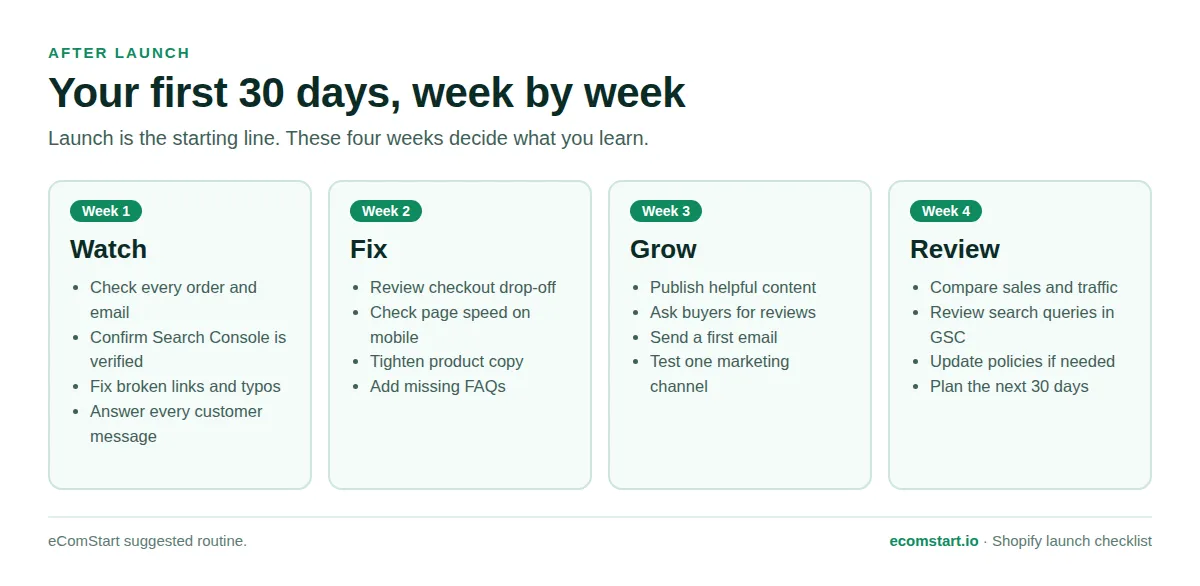
- Week 1, check every order: Review each order, notification, and fulfillment, and answer customer messages quickly.
- Week 1, confirm indexing: Check the Page indexing report in Search Console and fix any errors.
- Week 2, review the checkout path: Look at where shoppers leave. Simplify forms, clarify shipping costs, and improve weak product descriptions or photos.
- Week 3, publish helpful content: Write guides, size charts, or comparison pages for questions buyers search, link them from related products, and ask early buyers for honest reviews.
- Week 4, compare results: Look at sales, traffic sources, and search queries in Search Console. Update policies if real orders reveal gaps.
- Week 4, revisit your plan: Return to Settings > Plan. Upgrade if you need more staff accounts or features. If you need a break, Shopify lets you pause a store at a reduced monthly rate while customers can still view products.
Not sure you covered everything? Our Shopify Launch Check app guide explains one automated way to double-check a store, and our list of mistakes to avoid when hiring a setup agency helps if you bring in outside help.
Tools and apps for each launch task
Most launch tasks need nothing beyond Shopify and a few free Google tools. Add paid apps only when a specific need appears.
| Task | Tool | What it does | Cost note |
|---|---|---|---|
| Accept cards | Shopify Payments | Cards and wallets with no third-party transaction fee | Processing rates vary by plan and country |
| Test checkout | Test mode and Test payment gateway | Simulated orders with no real charge | Free, paid plan required for gateway tests |
| Calculate tax | Shopify Tax, Manual Tax, Basic Tax | Automatic rates by region | Availability depends on country |
| Search visibility | Google Search Console | Indexing reports and sitemap submission | Free |
| Shopping tab | Google Merchant Center | Product data for Google Shopping | Free to sign up |
| AI answers | Shopify Knowledge Base app | View and edit FAQs AI agents use about your store | Free on all plans |
Common launch mistakes to avoid
- Leaving test mode on: While any provider is in test mode, customers cannot place live orders. Check Settings > Payments on launch morning.
- Launching without a test order: Shipping rates, taxes, and emails can only be verified by buying something.
FAQ
How long does it take to launch a Shopify store?
Most small stores take one to three weeks of part-time work, based on our estimates. A store with a handful of products can launch in a few days. Payment verification and product photography are the usual bottlenecks.
What do I need before I can launch?
Shopify requires three things: a selected subscription plan, a store address in Settings > General under Business details, and a payment method with test mode deactivated.
Can I sell during the free trial?
No. A trial store starts in private mode with checkout inactive. To let customers buy, select a paid plan. If the trial ends before you choose one, the store is paused until you do, and your work is kept.
How much does it cost to launch a Shopify store?
As of October 2026, Shopify's pricing page lists Basic at $19 per month billed yearly ($25 monthly), Grow at $49 yearly ($65 monthly), Advanced at $299 yearly ($399 monthly), and Plus from $2,300 per month. Budget separately for a domain, a paid theme if you want one, apps, inventory, and marketing.
Do I need a business license or tax registration?
It depends on where you live and what you sell. Shopify says that if you need to collect sales tax, you must register with your local or federal tax authority. Check licensing rules with your local government and talk to an accountant.
How do I remove the password page from my Shopify store?
Go to Online Store > Preferences, find Store access, deactivate Private mode, and click Save. You can also click Private on the Online Store page, choose Public, and click Launch store.
How do I get my Shopify store on Google?
Turn off private mode, verify your domain in Google Search Console, and submit sitemap.xml under Indexing > Sitemaps. Shopify generates the sitemap automatically. Google does not guarantee how long indexing takes, so track progress in the Page indexing report.
Do I really need to place a test order?
Yes. A test order checks checkout, order processing, inventory, shipping, taxes, and email notifications together, at no charge when you use test mode.
Sources
- Shopify pricing plans (accessed October 2026)
- Shopify Help Center: Trying Shopify with a free trial
- Shopify Help Center: Preparing your Shopify store for launch
- Shopify Help Center: Shopify Payments and Setting up Shopify Payments
- Shopify Help Center: Two-step authentication and users for each pricing plan
- Shopify Help Center: Adding a domain and Adding and updating products
- Shopify Help Center: Shipping rates and Taxes
- Shopify Help Center: Adding store policies and customer privacy settings
- Shopify Help Center: Finding and submitting your sitemap and Optimizing your store for AI
- Shopify Help Center: Placing a test order
- Google Search Central: How to launch an ecommerce website
- Google Search Console Help: About Search Console